Organisation and method
Automate a shared mailbox without losing control
Contact@, accounting@, or support@ can quickly become gray areas. Here is how to automate triage, routing, and tracking without removing human validation.

A shared mailbox often starts with a good intention: centralize requests so nothing gets lost. Contact@ receives prospects. Accounting@ receives invoices. Support@ receives customers who need help.
Then habits take over. A message is read, but not handled. Two people reply to the same email. An important request ends up between a newsletter and an automated notification. No one really knows whether someone has taken ownership.
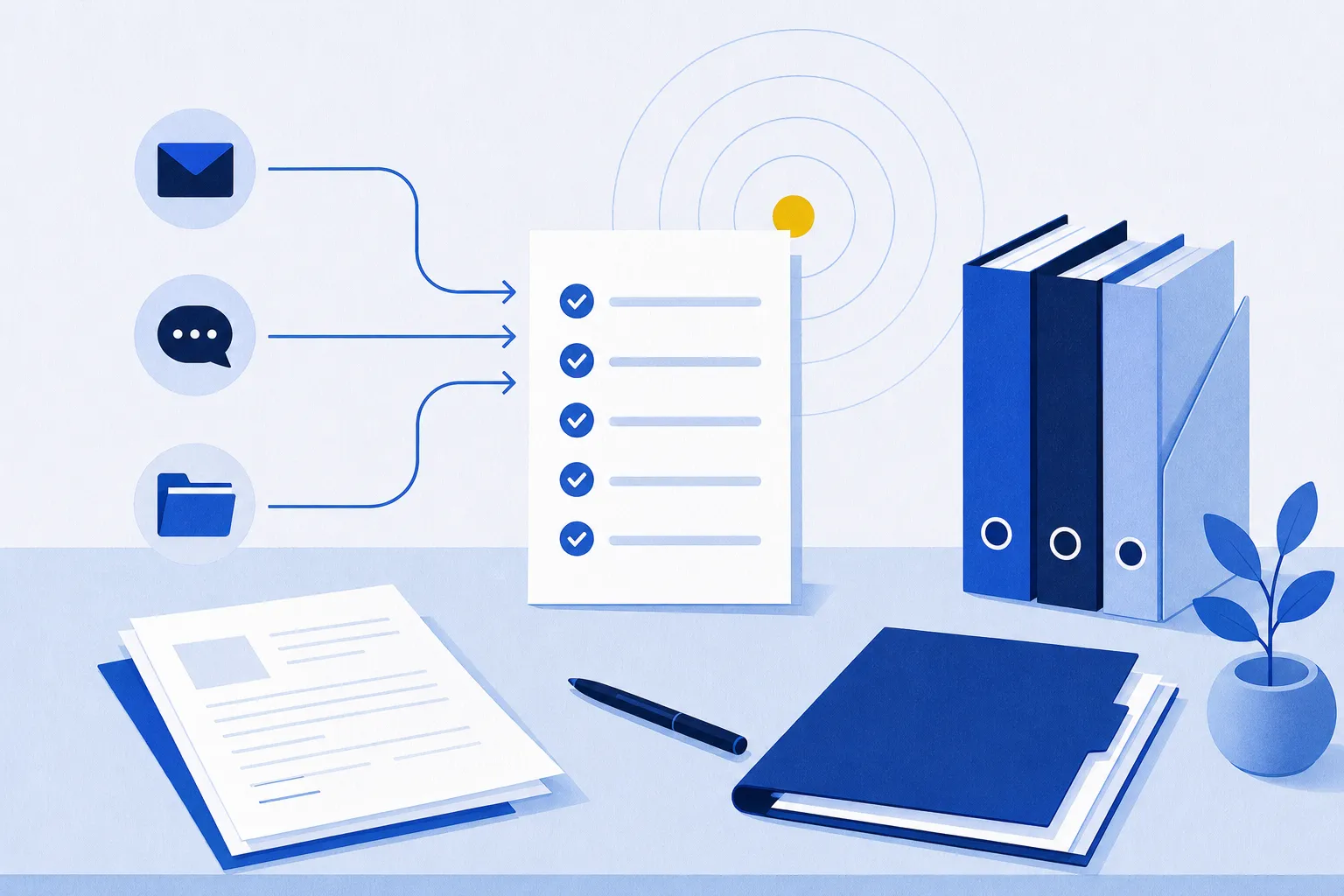
The goal is not to hand everything over to a machine. Good automation restores order, prepares the work, flags risks, and lets people validate anything that commits the company.
Why a shared mailbox gets out of hand quickly
A shared mailbox is not just an inbox. It is often a queue, a customer relationship tool, a coordination space, and sometimes an informal record of decisions.
Problems arise when the rules are not visible:
- a message is marked as read by one person, then disappears from everyone else’s radar;
- two colleagues reply in parallel, with different information;
- useful requests are buried among automatic acknowledgments, notifications, and newsletters;
- no one knows whether the topic belongs to sales, accounting, support, or management;
- an internal follow-up happens verbally, then gets lost;
- an attachment is opened, but never filed or entered into the business tool.
In an SMB, these small frictions weigh on the day. They create irritation for the team and uncertainty for the customer. If your main issue is already an overflowing inbox, automation should start with organization, not replies.
Clarify the rules before connecting a workflow
Before you automate, take one shared mailbox and observe what comes in. You do not need AI for the first findings. Careful reading is often enough to spot message families.
List the recurring categories:
- quote request;
- supplier invoice;
- expense report;
- complaint;
- appointment request;
- payment follow-up;
- job application;
- spam or unsolicited sales message;
- newsletter;
- automated notification;
- internal message with no action expected.
For each category, define four simple things:
- the owner: who handles it first;
- the backup: who takes over if the owner is absent;
- the next action: file, reply, enter, forward, follow up;
- the exceptions: what must be escalated.
Exceptions matter as much as rules. A priority customer, an aggressive tone, a payment topic, sensitive data, a legal question, or incomplete context should leave the standard flow. Depending on your situation, check legal, HR, or regulatory topics with your advisor.
Also plan the labels, folders, or statuses the team will use in Outlook, Gmail, or an IMAP-compatible mailbox. If no one looks at the “to process” folder, it is useless. The right system is the one the team agrees to follow.
Design the workflow: triage, route, reply, follow up
A shared mailbox workflow must remain easy to understand. When an email arrives, it can chain several concrete actions.
First, it reads the subject, the message body, and the useful attachments. Then it proposes a category: prospect, support, accounting, administration, urgent, simple information. This step can rely on AI when the content varies a lot. For newsletters or known notifications, a fixed rule by sender or subject is enough.
Then the workflow routes the message:
- add a label or move it to a folder;
- assign it to a person;
- send an alert in a Slack or Microsoft Teams channel;
- create a tracking row in a table;
- forward it to another mailbox or team.
The workflow can also prepare a reply. This is useful for an acknowledgment of receipt, a request for missing documents, a support response, or sales qualification. The healthy rule is simple: AI writes a draft, and a person validates it before sending. You keep the tone, accuracy, and responsibility.
Finally, the workflow can monitor important messages that remain unanswered and notify the team. It can also produce a regular summary: new messages, urgent items, blockers, pending requests. To visualize this type of logic, see our pages on the overflowing inbox and on human approval of replies.
Start from your current email system
You do not need to change email systems to regain control. Automation should connect to what already exists as much as possible.
With Outlook, a workflow can trigger when an email arrives in a Microsoft 365 mailbox, classify the message, prepare a reply, and send it after validation if the necessary permissions are granted.
With Gmail, the principle is similar: read the message, classify it, draft, validate, send, and track. The point is not to replace Gmail, but to remove the repetitive handling that surrounds each request.
With IMAP / SMTP, a company mailbox can also be connected if it uses these protocols. This is often useful for email hosted by a provider or on internal infrastructure.
Many business tools also connect directly: CRMs, accounting software, spreadsheets, file storage. See the available integrations. For software outside the catalog, stay cautious: it can sometimes be connected through its API or webhooks when the vendor provides them, to be checked case by case. The Loop & Roll HTTP and webhooks node calls a REST API or starts a workflow from any tool able to send a POST. Otherwise, exchanging files or emails can sometimes be more reliable and simpler.
The technical choice comes after the management rules. If the team does not know who should handle a complaint, no connector will guess it properly.
Keep control with simple safeguards
A shared mailbox often touches sensitive topics: customers, invoices, payments, contracts, personal data, conflict situations. Automation must therefore be framed.
Here are the safeguards to plan from the start:
- limited access: not everyone should be able to see, edit, or send from the mailbox;
- human validation by default: especially for external replies, accounting, sensitive support, and customer relationships;
- action log: message received, proposed category, decision made, person who validates, reply sent;
- circuit breaker: a switch that cuts outgoing emails in one move if behavior seems abnormal;
- controlled scope: HR, private, or sensitive emails can be excluded from processing;
- exception routing: ambiguous message, unreadable attachment, unusual request, incomplete context.
The log is valuable. It avoids vague discussions: you know what was proposed, validated, and sent. It also helps improve rules without blaming people.
For AI, the choice depends on your context. Loop & Roll lets you choose the appropriate AI, including AI hosted in France (OVHcloud), in line with the GDPR. Confidentiality, rights, and traceability topics must be framed before production. You can explore these points further on the security and sovereignty page.
Choose the first use cases by mailbox
Not all shared mailboxes should be handled the same way. Start with a category that comes up often or creates irritation. Do not try to cover every case from the start.
| Shared mailbox | Useful automations |
|---|---|
| contact@ | Distinguish prospects, partners, job applications, press, and messages with no action |
| accounting@ | Separate invoices, expense reports, payment follow-ups, bank details, and internal questions |
| support@ | Route to technical, billing, or sales, then prepare a reply from internal guidelines |
| agency or service mailbox | Triage briefs, customer feedback, attachments, urgent requests, and simple information |
| management mailbox | Flag priority senders, summarize long threads, prepare a cautious reply |
On contact@, the value often comes from the initial triage. A prospect should be identified quickly. A job application should go to the right person. A newsletter should be filed without distracting the team.
On accounting@, caution is stronger. An invoice can be filed. A follow-up can be summarized. But a request to change bank details or a payment topic must be checked by a person.
On support@, routing brings peace of mind. A technical request should not stay with sales. A billing question should not go to product support. The workflow can prepare a draft based on internal guidelines, but the team validates what goes to the customer.
For more concrete ideas, browse our use cases by trade and by problem. The important point is to start from a real irritant, not an attractive demo.
How Loop & Roll sets up this type of workflow
The Loop & Roll method starts with an AI audit. The goal is to understand where the team loses time: interviews with the people involved, observation of emails, analysis of repetitive handling, then ranking opportunities by expected value and implementation effort. Without inventing any promise, this step helps choose a useful topic rather than a spectacular case.
Then an opportunity becomes a prototype. For example: triage contact@, prepare an acknowledgment of receipt, assign sales requests, and flag ambiguous messages. The people who actually handle the mailbox test the prototype. They correct the categories, tone, exceptions, and validation rules.
When the process is understood and accepted, the workflow moves into production. It measures actions, keeps a log, surfaces blockers, and can extend to another mailbox or another team. The workflow can start from an email, but also from a form, a webhook, or a table.
Loop & Roll workflows adapt to the SMB’s internal rules. AI proposes, the team validates. The goal is not to take control away from people, but to free up time on repetitive actions.
There are also cases that should not be automated right away: delicate sales decisions, sensitive legal or HR replies, categories that are still unstable, highly relational exchanges, rare requests. And when a simple Outlook or Gmail filter is enough, it is better to start there.
Frequently asked questions
Can you automate an Outlook shared mailbox?
Yes, if the mailbox is accessible through Microsoft 365 and the necessary permissions are granted. The workflow can read, classify, prepare a draft, and send after validation.
Can you automate a Gmail mailbox?
Yes. A workflow can trigger when a message arrives, propose a classification, prepare a reply, and track requests. Validation rules still need to be defined with the team.
Does AI send replies on its own?
By default, no. It prepares a draft. A person rereads it, adjusts it if needed, and validates sending. This is especially important for customers, accounting, and sensitive topics.
What happens if the workflow makes a mistake?
A person takes over. The log makes it possible to understand what happened, then adjust the rule. A switch cuts outgoing emails in one move if its behavior seems abnormal.
To start, choose a single shared mailbox, note the recurring categories, then define a routing rule and an acknowledgment rule. For an outside view of your case: Book a demo.




The Loop & Roll team The partners who help SMEs automate their admin work.
Meet the team