Organisation and method
Trigger a workflow from a form or webhook
Useful requests do not all arrive by email. Here is how to trigger a workflow from a form, a webhook, or a table without losing control.
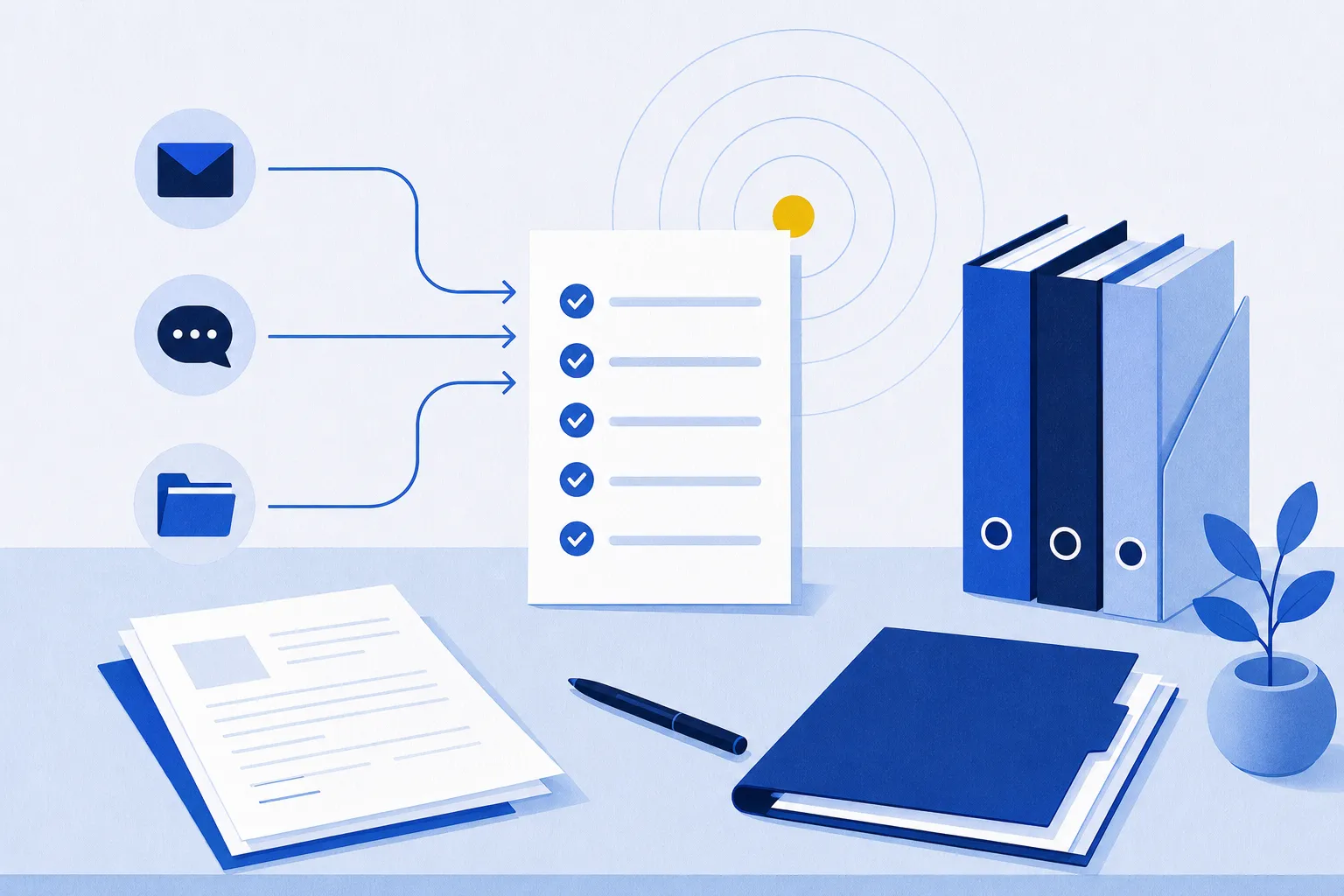
A customer request does not always arrive by email. It can come through a contact form, a sales inquiry, an internal ticket, a row added to a table, or a notification sent by a business tool.
When each channel triggers a different process, the team loses time. Someone re-enters information. A file stays in a corner. One request is handled quickly because it arrives in the right place, while another waits because it comes from a less monitored channel.
The right approach is to separate two topics: the trigger and the processing. The trigger changes depending on where the request comes from. The processing can stay the same: understand, check, enter, classify, forward, follow up, then have a person validate when the stakes require it.
Why move beyond the email reflex
Email remains central in many small and midsize businesses. It has one simple advantage: everyone knows how to use it. But it is not always the best entry point.
A form guides data entry from the start. It requires certain fields, can request an attachment, and avoids some back-and-forth. A webhook allows software to signal that an event has just occurred: new request, payment received, status changed, submission sent. A shared table can also serve as a starting point when a team already works from a structured list.
Without automation, these entries quickly create breaks in the process:
- one person copies form fields into a business tool;
- another manually checks that a document is present;
- a notification is read, but not processed;
- a table row is left without follow-up;
- tracking depends on the person who saw the request first.
The problem is not the channel. The problem is the lack of a common process.
A well-designed workflow brings these requests back into a single logic. It reads what comes in, checks the essential information, prepares the useful actions, and alerts the right person if something blocks progress. The goal is not to let everything run without control. The goal is to save time on repetitive tasks while keeping human review in the right places.
To explore possible entry points beyond email, you can read the page dedicated to workflow triggers.
Choose the right trigger based on where the request comes from
The right trigger is often the one that requires the least change from the team. If your colleagues already work in a table, there is no need to impose a new portal on them. If your customers already fill out a form, it makes sense to start from that clean data. If a business tool can notify another system, a webhook can avoid manual monitoring.
Here is a simple guide.
| Source | When to use it | Point to watch |
|---|---|---|
| Form | You want to guide data entry from the start | Define required fields and expected attachments |
| Webhook | A tool can signal an event | Check which data is sent |
| Table | The team already works from a list | Avoid duplicates and incomplete rows |
| Requests still arrive in a shared inbox | Plan for reading attachments and free text |
A form works well for a quote request, lead qualification, document submission, or internal request. It adds structure. But it does not remove exceptions: poorly completed fields, unreadable files, requests outside the expected scope.
A webhook works when a tool can send a clean signal. For example: “a new request has arrived” or “a status has changed.” The workflow then starts without someone having to monitor the tool.
A table works when the team wants to keep a simple view of requests. A new row can launch a check, a follow-up, or a task. This approach works well if the columns are stable and understood by everyone.
Email remains useful when requests arrive in a shared inbox or directly with a colleague. It requires more interpretation, especially when the message is free text and attachments vary.
Build the process after the trigger
Once the workflow has started, the entry channel becomes secondary. The core topic is the process.
A workflow can, for example:
- read the fields of a form, data sent by webhook, a table row, or the content of an email;
- check that a customer is known, that a case reference exists, or that an attachment is present;
- check the consistency of an address, an amount, or an identifier;
- create or complete a record in a business tool, if the integration exists;
- prepare information for controlled entry if a direct connection is not available;
- classify the request;
- add a task;
- notify the right person;
- prepare a reply or follow-up;
- record each action in a log.
This log matters. It shows what was done, what was proposed, what was validated, and what was sent to exception handling. Without a log, automation quickly becomes a black box. With a log, it becomes a processing assistant the team can control.
In some cases, the workflow works with software that is already connected. In others, it prepares a draft or an entry form for a person. This difference matters. A partial, clear, and reliable automation is better than an overly ambitious sequence that no one feels safe using.
Use forms, tables, and webhooks without overpromising
Forms are often a good starting point because they improve data quality at entry.
With Typeform, Loop & Roll can start a workflow for each new Typeform response, read answers by question label, and delete the answers of a person who requests it.
With Tally, Loop & Roll can start a workflow for each new Tally response, retrieve answers by question label, or reread responses from a form.
With Jotform, Loop & Roll can start a workflow for each new Jotform form submission, reread a submission, and bring its files back as attachments.
These triggers are useful in very concrete cases:
- quote request sent to the sales team;
- lead qualification before creating a task;
- document submission for an administrative file;
- appointment registration;
- internal request sent to the right person;
- report to be handled by the relevant department.
A webhook follows another logic. It is for tools that can send a notification: “here is an event.” The HTTP and webhooks connector from Loop & Roll can call a REST API from a workflow, and start workflows from any tool able to send a POST.
For software that is not listed in the native integrations, caution is needed. The connection depends on what the publisher allows: API, webhook, file exchange, or emails. This must be checked case by case. Some tools allow a clean trigger. Others require a less comfortable workaround.
The right questions to ask the publisher are simple:
- can the tool send a POST when an event occurs?
- what data is sent in that signal?
- is a case identifier included?
- is there an API to reread the details?
- what happens if the call fails?
- does the tool retry the send?
These answers help avoid building a fragile workflow on an entry point that is too thin.
Keep control with human review
Not every action deserves the same level of control. The right method is to separate what can be automatic from what must be validated.
Can often be automatic:
- reading clean fields;
- classifying a request based on a simple rule;
- matching an obvious reference;
- creating a task;
- preparing a draft;
- notifying a team;
- storing a document in the right folder.
Should often be validated:
- sending a customer message with commitments;
- making a sensitive change in a file;
- making a business decision;
- performing a financial action;
- deleting data;
- handling a case where several files look similar.
The rule is simple: AI proposes, a person validates by default when the stakes justify it. The workflow can also stop if information is missing, if a document is unreadable, or if the match is uncertain.
This human review should not be a hidden formality. It must be visible: who must validate, what they validate, with which information, and what happens if they reject it. An action log then makes it possible to know who validated what and when.
On this topic, the page on human review details the control approach used by Loop & Roll.
When no AI is needed here
It should be said clearly: no AI is needed here in many cases.
If the fields are clean, the conditions are stable, and the decisions are simple, a fixed-rule workflow is often enough. For example:
- sending an acknowledgment of receipt;
- creating a task;
- moving a file;
- notifying a team;
- copying data from one field to another;
- blocking an incomplete request.
AI becomes useful when it must understand free text, summarize a request, extract information from a document, or prepare a reply. It must bring a real time saving, not complicate a process that already works with rules.
A deterministic workflow is often easier to explain, control, and get accepted by teams.
How to scope and deploy with Loop & Roll
Before launching, you need to define the limits. This is what avoids unpleasant surprises.
First check the quality of the entry point: required fields, expected formats, attachments, possible consents depending on your situation. On legal or regulatory topics, it is better to check with your advisor.
Then plan for duplicates. The same request can arrive through a form and then by email. A webhook can be resent if the external tool did not receive confirmation. The workflow must recognize these situations or ask for validation.
Also plan for failures and recovery: unavailable tool, refused API call, file too large, missing data. In these cases, a circuit breaker must stop the workflow and alert a person.
Security must be handled from the start. Sensitive data should be limited to what is strictly necessary, with an appropriate filter. Depending on your needs, Loop & Roll can use AI hosted in France (OVHcloud), in respect of the GDPR.
The Loop & Roll method follows three steps: identify, automate, measure and extend.
The AI audit first identifies requests that do not only come through email: forms, tables, business tools, notifications. Opportunities are ranked by gain and effort.
Each opportunity then becomes a workflow: trigger, checks, actions, human review, log, circuit breaker. The prototype is tested on real cases, then adjusted with the teams before production.
Finally, you measure what happens: requests processed, blockers, pending validations, cases to improve. The same business logic can then be extended to other entry points: form, webhook, table, or mailbox. If you want to see the full approach, you can read how we work.
Frequently asked questions
Can a form launch the same workflow as an email?
Yes, if the necessary information is available. The trigger changes, but the processing can stay the same: check, classify, prepare an action, request validation if needed.
Do you always need to use a webhook?
No. A native form or a table is often enough when the use case is simple. A webhook becomes useful when software can cleanly signal an event to another tool.
What happens if data is missing?
The workflow can put the request into exception handling, prepare a follow-up, or ask for human review. You should not force automatic processing when the starting information is insufficient.
Can you connect a business tool that is not listed?
Only if the publisher offers an API or webhooks, to be checked case by case. Otherwise, it is sometimes possible to use file or email exchanges.
If you already have requests coming in through forms, webhooks, tables, and email, the most useful step is to look at your real case. You can Book a demo to see where to place the right triggers and human reviews.




The Loop & Roll team The partners who help SMEs automate their admin work.
Meet the team