Sales and CRM
Avoid duplicate entry between email and CRM
Your prospects write by email, but your follow-up lives in the CRM. Here is how to reduce rekeying without losing control over contacts and replies.

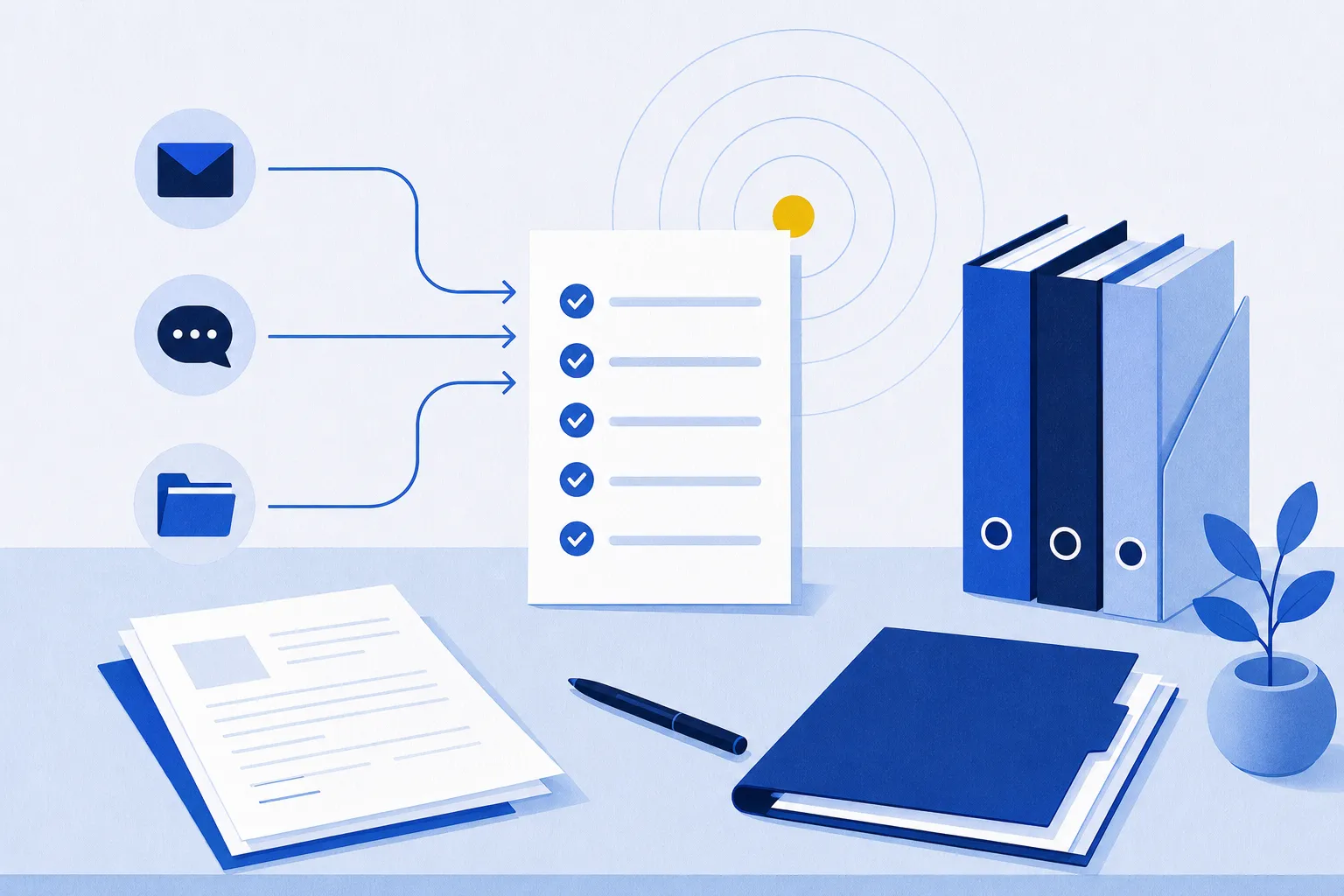
A prospect writes through a form, replies to a campaign, or sends a request directly to a salesperson. The message lands in Gmail, Outlook, or a shared inbox. Then someone opens it, reads the need, identifies the contact details, and re-enters the information in the CRM.
This duplicate entry may seem harmless. In practice, it weighs on sales responsiveness. A record can remain incomplete. A contact can be created twice. A request can wait in an inbox when it should already be qualified.
The right goal is not to automate everything without control. It is to remove unnecessary copy and paste, prepare reliable qualification, then let your teams validate what affects the sales relationship.
Why duplicate entry slows down your sales team
Duplicate entry often starts with a very simple situation: the sales request does not arrive in the CRM, but in the email inbox.
It can come from several sources:
- a contact form that sends an email;
- a direct request to a salesperson;
- a shared inbox, such as contact or sales;
- a reply to a campaign;
- a quote request forwarded by a colleague;
- an already long email thread, with scattered information.
The salesperson then has to sort the request before even selling. They distinguish a new prospect from an existing customer. They identify the company, phone number, need, urgency, and sometimes attachments. They check whether the person already exists in the CRM. Then they create or complete a record.
When the team is busy, these actions become irregular. Some fields remain empty. Important notes stay in the email. Two records are created for the same company. The quote is sent, but the follow-up is not attached to the right lead.
So the problem is not only administrative. It affects request qualification, contact quality, sales follow-up, and the manager’s visibility into the pipeline. If you want to address the topic more broadly, rekeying across software is often a good place to start.
Clarify what really needs to enter the CRM
Before connecting a workflow, start with a simple question: what is worth entering in the CRM?
Not everything that arrives by email needs to become structured data. Some information must be visible in the record. Other information can remain in the original message or in an attachment.
List the inbound sources
Take a few recent requests and classify them by origin:
- website form;
- direct email;
- email forwarded by a colleague;
- reply to a campaign;
- quote request;
- meeting request;
- out-of-scope request.
This mapping prevents you from designing a workflow that is too broad. A general sales inbox is not handled in the same way as a tightly structured form.
Define useful fields
Start by limiting yourself to the fields that truly help people act:
- first and last name;
- company;
- email;
- phone, if available;
- expressed need;
- relevant product or service;
- request source;
- urgency or deadline mentioned;
- salesperson to notify;
- qualification status.
The rest can wait. A CRM filled with approximate fields does not help your salespeople. A short, useful, and validated record is better than a long record that no one trusts.
Set naming rules
Duplicates often come from small variations: abbreviated legal name, missing accent, subsidiary entered as the main company, personal address used instead of professional address.
Define a few simple rules: how to name a company, when to create a contact, when to attach a lead to an existing company, and when to request human validation.
And sometimes, no AI is needed here. If a form always sends the same fields, in the same order, a fixed-rule workflow is often enough. AI becomes useful when requests are written freely, with varied phrasing.
Build the workflow from email to qualified lead
The target workflow should reproduce the right reflexes of a salesperson, without taking the decision away from them.
It can start when an email arrives in Gmail, in Outlook, or in an IMAP / SMTP mailbox. Then it prepares the work in several steps.
-
Understand the message topic
The workflow distinguishes a sales request from a support request, a supplier follow-up, an internal message, or probable spam. -
Extract useful information
It identifies contact details, the company, the need, useful attachments, dates mentioned, and qualification signals. -
Check what already exists
Before creating a record, it looks for whether the contact or company already exists in your tool. This step is essential to limit duplicates. -
Prepare creation or update
The workflow proposes creating a lead, completing a record, or attaching the request to an existing opportunity, according to your rules. -
Notify the right person
Routing can depend on the sector, customer portfolio, request type, language, or urgency level. -
Draft a reply
The message remains a draft until someone has reviewed it. The salesperson keeps control over tone, priority, and the next step.
This logic is especially useful when the sales request then opens a quote, a follow-up, or a meeting. The quality of qualification often shapes what happens next. It is also the natural link with quotes and follow-ups processes.
Plan controls before automating
Automating duplicate entry does not mean letting a tool modify the CRM without oversight. In an SMB, the right level of control is often what makes the workflow acceptable to teams.
The starting rule should be simple: AI proposes, a person validates. This is especially the role of human validation for sensitive creations or changes.
Guardrails to put in place
Plan at least:
- validation before creating a new contact, if there is a risk of duplication;
- validation before merging or attaching to an existing company;
- an exception queue for ambiguous messages;
- an alert if an attachment is unreadable;
- escalation to a person if the need is out of scope;
- a log of every action performed;
- a circuit breaker if a business rule is no longer respected.
Duplicate handling deserves particular attention. The same email domain is not always enough to conclude that it is the same company. The same name can refer to two different people. A generic address can represent several contacts.
So you should avoid overly ambitious automatic merges. The workflow can flag a likely duplicate, prepare the comparison elements, then request validation.
Also consider sensitive data. Depending on your activity, some emails may contain information that should not be sent to just any service. Loop & Roll can filter sensitive data and, if needed, use AI hosted in France (OVHcloud), with respect for GDPR.
Choose the right connection with your CRM
The connection depends on your tool and your organization. Start by checking whether your CRM is among the tools already connected.
Several CRMs are native integrations of Loop & Roll: HubSpot, Pipedrive, Salesforce, Zoho CRM, Microsoft Dynamics 365, Sellsy, Axonaut, Odoo, Attio, folk or, for insurance brokers, CourtiGo. Depending on the tool, the workflow finds or creates the contact there, adds a note or a task, and reacts to new records. For a line-of-business tool not among the integrations, you need to check case by case what the publisher allows. When possible, the workflow can connect to the CRM through its API or through webhooks, using Loop & Roll’s HTTP and webhooks connector.
When the API is not available, or when the project needs to stay simple, other options may be enough:
- a structured email sent to the CRM;
- a file imported at regular intervals;
- an intermediate table validated by the team;
- a qualification space before final entry.
Tools such as Airtable, Notion, Google Sheets, or Loop & Roll’s built-in tables can also serve as a qualification buffer or lightweight CRM, when they already fit the team’s habits.
The right choice rarely depends on technology alone. It depends above all on the level of control you expect, the quality of your data, and how your salespeople already work. If your CRM is poorly maintained, start with a few simple rules for creation, updating, and validation. Automating a confused database without guardrails may amplify the disorder.
Start without launching a CRM project
You do not need to rethink your entire sales process to start. The safest approach is to choose a narrow, visible, and useful scope.
For example: one sales inbox, one request type, one qualification path.
Here is a practical method:
- Choose an email source to process.
- Gather recent requests.
- Classify them into categories: easy, ambiguous, out of scope, sensitive.
- Define the minimum fields to extract.
- Write the creation or update rules in the CRM.
- List the cases where a person must validate.
- Launch a prototype that prepares actions without imposing them.
This prototype lets you test the rules with salespeople. They see what the workflow understands, what it proposes, and what it deliberately leaves aside.
This is also when you identify the irritants removed: less copy and paste, fewer back-and-forth exchanges, fewer forgotten requests, fewer incomplete records. Only then can you extend the workflow to other inboxes, other lead types, or follow-ups.
At Loop & Roll, this work often starts with an AI audit. The goal is to identify where duplicate entry costs time, then turn each opportunity into a workflow: email reading, extraction, verification, entry, classification, notification, and reply draft. The prototype is used to validate the rules before production.
Frequently asked questions
Does this replace the salesperson’s work?
No. The workflow prepares entry, qualification, and sometimes a draft reply. The salesperson keeps the decision, the relationship, and the validation of anything that commits the company.
Can all duplicates in the CRM be avoided?
No, not absolutely. You can reduce duplicates with verification rules, cautious matching, and human validation for ambiguous cases. Exceptions must remain visible.
Is it compatible with Gmail, Outlook, and my CRM?
Gmail and Outlook can trigger workflows when emails arrive. If your CRM is among the integrations, such as HubSpot or Pipedrive, the workflow connects to it directly. Otherwise, you need to check connection options: API, webhooks, file exchange, structured emails, or an intermediate table depending on what the publisher allows.
Is AI always necessary?
No. For highly structured messages, a fixed-rule workflow is often enough. AI becomes useful when requests are written freely, with information scattered across the message body or attachments.
If duplicate entry between your inbox and your CRM slows your teams down, the right starting point is to observe a few real requests and define the necessary validations. If you would like to review your case with Loop & Roll, you can Book a demo.




The Loop & Roll team The partners who help SMEs automate their admin work.
Meet the team