Organisation and method
Identify repetitive tasks in your inbox
Your inbox often contains invisible work. Here is a simple method to spot repetitive tasks, group them, and decide what to automate first.
An SME inbox is not only a place for communication. It is often the starting point for daily work: checking an attachment, replying to a client, filing a document, following up with a supplier, or entering information into a tool.
This work is useful, but it often stays invisible. It slips between two calls, inside a shared inbox, in an internal forward, or in a spreadsheet updated by hand. When the workload increases, things get missed, priorities blur, and everyone compensates with their own habits.
Before talking about automation, you need to identify what truly repeats. The goal is not to automate everything. It is to see more clearly where time goes, where control is missing, and where a workflow could help the team work with more peace of mind.
Why start with the inbox
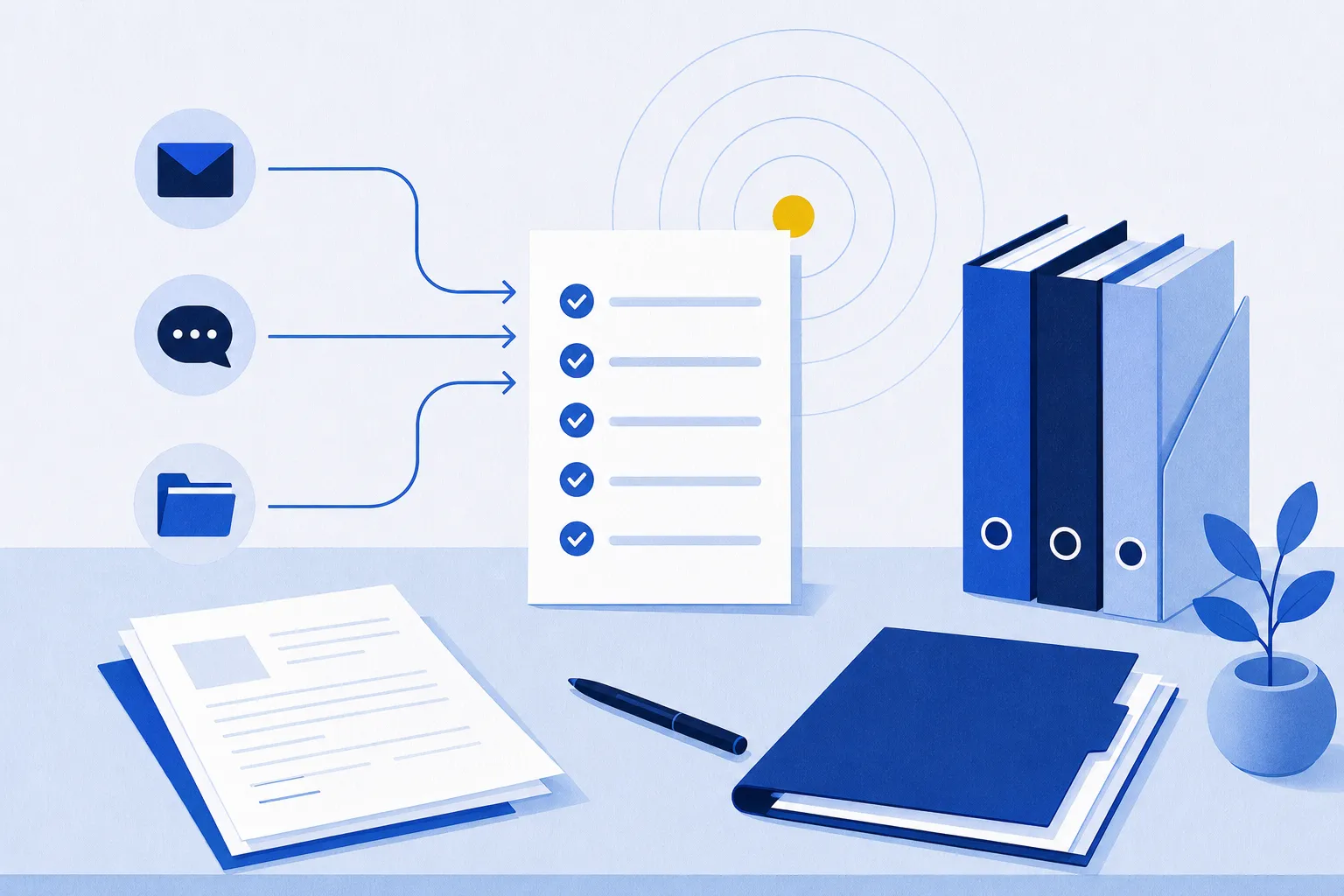
The inbox concentrates many operational signals. A client writes. A supplier sends an invoice. A prospect asks for a quote. A platform sends a notification. A colleague forwards a message asking: “Can you handle this?”
Each time, the email triggers a sequence of actions. Someone opens the attachment, looks for a reference, compares it with a file, copies a piece of data, files the message, prepares a reply, then sends it to the right person.
These actions do not always look like a process. Yet they form one. They have an entry point, rules, exceptions, and an expected outcome.
That is why the inbox is a good place to start. It shows work as it arrives, without redesigning the whole organization. If your main issue is an overloaded inbox, the challenge is not only to organize messages. It is to understand what they actually ask of the team.
Observe emails without looking for the solution right away
The first step looks like a simple audit. Choose a representative inbox: contact, accounting, sales administration, support, branch office, management, or a shared inbox. It is better to start from a live flow, where operational requests really arrive.
Over a representative period, note the messages that trigger a repeated action. Do not limit yourself to urgent emails. An ordinary message can be very revealing if it often forces someone to perform the same steps.
For each observed message, describe the real path:
- who opens the message;
- who understands the request;
- who checks the information;
- who enters or files something;
- who replies to the client, supplier, or colleague;
- who follows up if information is missing.
Also include emails forwarded internally. They often show that a rule is unclear, or that one person acts as a human “router.” Look at attachments, manual follow-ups, messages copied into a spreadsheet, and folders created by hand.
At this stage, do not judge. Do not try yet to know whether AI can handle the topic. Collect facts. Good automation rarely starts with a brilliant idea. It starts with precise observation.
Group messages by task families
An inbox feels messy because everything arrives in the same place. To regain control, group messages by work families.
Common families include:
- invoices and accounting documents;
- quote requests;
- missing documents in a file;
- appointment requests;
- complaints;
- applications;
- client requests;
- automated notifications;
- supplier follow-ups;
- confirmations or cancellations.
For each family, describe the action with concrete verbs. For example: check, enter, file, reply, send, follow up. This wording forces you to look at the real work, not only at the topic of the message.
Then distinguish between two types of families.
On one side, some require a human decision. A sensitive complaint, a commercial negotiation, a legal situation, or a financial decision must remain under control. Automation can help prepare, summarize, or alert, but it should not decide alone.
On the other side, some families always follow the same rule. A message contains an invoice, which needs to be recorded and filed. A request is missing a document, so a follow-up needs to be prepared. An automated notification can be archived after checking. In these cases, the work is often a good candidate.
You should also accept a simple idea: no need for AI here in many cases. An email rule, a filter, or a fixed-rule workflow is sometimes enough. AI becomes useful when it needs to understand a freely written message, extract variable information, summarize a thread, or prepare an adapted reply.
For inspiration, you can browse our use cases and compare them with your message families. The point is not to copy an example as is, but to recognize similar patterns.
Describe each family as a mini-process
Once the families are identified, choose the ones that come back often and describe them as mini-processes. The goal is not to produce heavy documentation. The goal is to make the task clear enough for another person, or a workflow, to follow it.
For each family, ask the following questions.
Who handles and who validates?
Note the person or team that handles the messages. Also indicate who validates in case of doubt. This distinction is essential. Many automations fail because they confuse execution with decision-making.
For example, a workflow can prepare a draft reply. But if the reply commits the company, a person must validate it before sending. One-click validation helps keep that control without returning to a fully manual chain.
What information is read?
List the information used in the message or attachment: name, reference, amount, date, status, request subject, client name, related file, missing document, stated deadline.
Be concrete. If someone opens a PDF to find a reference, write it down. If they compare the sender’s name with a spreadsheet, write that down too.
Which tools are involved?
Note all the tools involved: inbox, spreadsheet, shared folder, calendar, signature tool, business software, CRM, or ERP.
Many of these tools connect directly: see the available integrations. For business software outside the catalog, stay cautious. A workflow can connect through an API or webhooks when the publisher provides them, to be checked case by case, or work through file or email exchanges. The important point is not to assume a connection that does not exist.
What output is expected?
Describe the expected result:
- a prepared reply email;
- a row added to a spreadsheet;
- an attachment filed in the right folder;
- an alert sent to a team;
- a prepared follow-up;
- a message sent to the right person;
- a trace added to a log.
The clearer the output, the easier the workflow will be to control.
What exceptions should be planned for?
Exceptions are not a detail. They protect your organization.
List the cases that should leave the automatic flow: sensitive client, unreadable attachment, ambiguous request, missing information, dissatisfied tone, legal topic, financial topic, duplicate, unknown sender.
Good automation does not try to handle everything. It knows how to isolate what does not fit the rule and send it to a person.
Prioritize what should be automated first
Not all repetitive tasks deserve the same effort. To choose the first topics, use a simple grid: visible gain and reasonable effort.
First look for families that combine several qualities:
- they return regularly;
- they follow a stable sequence;
- the rules are easy to explain;
- the required data is present in the email, attachment, or an accessible tool;
- exceptions can be identified;
- the risk is limited if a person validates before the final action.
Good first candidates are often modest: filing attachments, preparing a reply, pre-filling a row in a spreadsheet, alerting a team, logging a request, distinguishing an important message from a simple notification.
Avoid starting with the most complex topic. A good first workflow should be useful even if it does not handle every case. It can manage simple situations, set ambiguous cases aside, then let the team decide.
The effort mainly depends on a few elements: number of tools involved, data quality, level of exceptions, need for human validation, clarity of the business rule. If each person handles the request differently, the next step is not automation. It is clarification.
That is exactly what an AI audit makes possible: observing flows, interviewing teams, analyzing emails, then ranking opportunities by gain and effort. You can do it yourself with a simple method. You can also get support if you want to move faster without losing control.
What is better not to automate right away
Some tasks should wait. This is not a failure. It is often a sound management decision.
Set aside rare, ambiguous decisions or decisions that depend heavily on context. If the team needs to interpret a commercial, managerial, or legal situation, automation can help prepare the file, but not decide on its own.
Also avoid topics where an error could have a significant impact without robust validation. Replies that commit the company, sensitive financial information, disputes, and requests linked to specific rights or obligations must be framed carefully. Depending on your situation, check with your advisor.
Do not launch a workflow on an unstable process either. If everyone has their own method, you first need to decide on the shared rule. Otherwise, the workflow will reproduce the existing confusion.
Finally, do not confuse automation with lack of control. A serious workflow should include:
- human validation when the action commits the company;
- an action log;
- a way to stop or suspend the flow;
- clear exception handling;
- protection for sensitive data.
At Loop & Roll, custom workflows are built with this mindset: understand the message, check the data, file, enter, send, or follow up, while keeping a person in the loop when needed. You can see how this works in custom workflows.
Move from observation to workflow
When a family becomes a priority, turn it into a workflow in business language. Do not start with technology. Simply describe what needs to happen.
For example:
- trigger: an email arrives in the shared inbox;
- understanding: the message is recognized as a quote request;
- checking: the required information is looked for in the message and attachments;
- action: a row is prepared in a spreadsheet or a folder is created;
- reply: a draft email is written;
- control: a person validates before sending;
- log: the completed action is recorded.
The trigger can be an email, but not only that. Depending on your organization, it can also come from a form, a webhook, or a table. The important point is to start from the real entry point.
With Loop & Roll, human validation is the default rule. AI proposes a draft, and a person validates it. Actions are logged. A switch cuts all outgoing emails in one move. HR, private, or sensitive emails can be excluded from processing. The choice of AI remains open, including AI hosted in France (OVHcloud), in line with the GDPR.
The right approach is to start small: one message family, one clear rule, one simple control. When the setup is stable, you can extend progressively.
Frequently asked questions
How do you know if a task is truly repetitive?
It comes back in similar forms and often triggers the same actions: reading, checking, copying, filing, replying, sending, or following up. If the wording changes but the action stays the same, that is a good sign.
Do you need to analyze the whole inbox?
No. Start with shared inboxes or flows that concentrate operational requests: accounting, sales administration, support, branch office, contact, or management. A targeted observation is often enough to reveal the main families.
Is AI always necessary?
No. Many simple sorting, filing, and follow-up tasks can be handled with fixed rules. AI becomes useful when it needs to understand free text, extract variable information, summarize an exchange, or prepare an adapted reply.
Can you automate with Gmail, Outlook, or business software?
Yes. Gmail and Outlook are native integrations, as is any mailbox that speaks IMAP / SMTP. For business software outside the catalog, you can connect through an API or webhooks when the publisher provides them, to be checked case by case, or work through files or emails.
If you want to review your own flows without starting from a blank page, Loop & Roll can lead this process with you, from the audit to a first workflow validated as a prototype. To examine a concrete case with your team: Book a demo.




The Loop & Roll team The partners who help SMEs automate their admin work.
Meet the team