Organisation and method
How to track your workflows in a dashboard
A useful dashboard is not meant to monitor everything. It helps you see what is moving forward, what is blocked, and what is waiting for human approval.

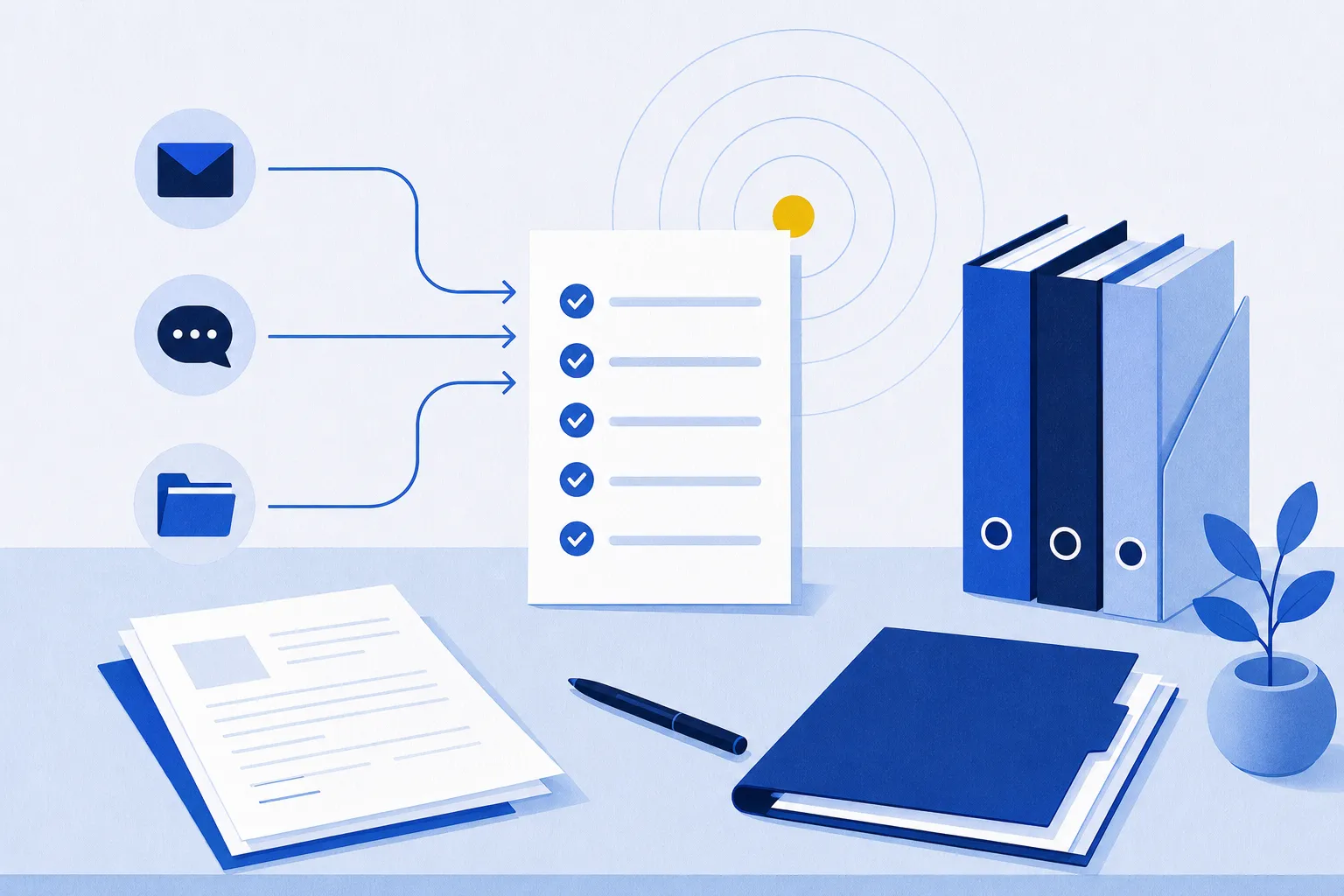
Requests rarely arrive through a single channel. A customer writes by email. A prospect fills out a form. A team member adds a row to a file. A software tool triggers an alert. Very quickly, tracking becomes scattered.
Automation helps process these requests faster. But it is not enough if no one can clearly see where each case stands. A request may be read, classified, followed up, or blocked without the team knowing what to do next.
A good dashboard therefore acts as a control room. It shows workflow status, pending approvals, exceptions, and history. It avoids digging through emails to reconstruct what happened.
Why a dashboard quickly becomes necessary
In an SME, tracking often relies on strong but fragile habits. A shared mailbox. Folders in a document space. Follow-ups noted in a calendar. Attachments opened by hand every morning. Information re-entered into business software.
As long as the volume remains manageable, everyone compensates with experience. But as soon as requests multiply, the same questions come back:
- Who took ownership of the request?
- Has the attachment been checked?
- Is the customer waiting for a reply?
- Is the follow-up ready or already sent?
- Is the case blocked by missing information?
An automated workflow can read an email, extract information, classify a document, prepare a response, or create a task. But if these actions remain invisible, the team still feels uncertainty.
The dashboard addresses a simple need: seeing requests in progress without opening every email thread. It does not replace the team’s work. It makes the work readable.
This is especially useful for an overloaded inbox, where important requests mix with secondary exchanges, attachments, and follow-ups.
What a good dashboard should show first
A dashboard is not useful because it contains a lot of information. It is useful because it shows the right information at the right time.
To track automated workflows, it should first display each request with a clear status. For example:
- received;
- understood;
- in progress;
- awaiting approval;
- forwarded;
- followed up;
- completed;
- blocked.
These statuses must speak to the teams. If the wording is too technical, people will not really use it. Simple words, close to the way you work, are better.
The dashboard should also show where the request came from. It may come from an email, a form, a webhook, or a table. The goal is not to force the team to change its habits. The goal is to centralize tracking, even when requests enter through several doors.
The most important column is often the next expected action. It answers a very concrete question: what needs to happen now?
This may be:
- approve a draft reply;
- complete missing information;
- correct extracted data;
- confirm how a document was classified;
- follow up with a third party;
- handle an exception.
A good dashboard should also make the elements needed for control visible: attachments, extracted information, checks already performed, proposed draft, person expected to approve.
The limit to keep in mind is simple: too many indicators kill usage. If the view looks like a report no one reads, it will not help manage anything. A short view, focused on the day’s decisions, is better.
How to track a workflow without losing control
A well-designed workflow does not sideline the team. It handles repetitive steps, then asks for approval when the matter justifies it.
In practice, the workflow can:
- understand a received request;
- check an attachment;
- classify a document;
- enter information in a table or software tool;
- prepare a reply;
- forward the case to the right person;
- follow up if an expected action is not moving forward.
When AI is involved, it proposes. A person approves when the action involves the company, the customer, or the case. This is a sound rule, especially at the beginning.
Common examples include:
- a customer reply is prepared, then reviewed before sending;
- a follow-up is proposed, then approved by the person responsible for the case;
- a document is classified automatically, but a doubtful classification is escalated for review;
- data extracted from an invoice or a form is checked before entry.
The dashboard makes this organization visible. Everyone sees what is waiting for their input and what can continue automatically. You avoid two pitfalls: letting automation act without control, or asking the team to check every detail unnecessarily.
You also need to accept a simple idea: no AI is needed here in many cases. If a request contains a specific keyword, if a deadline has passed, if a document is missing from a case, a fixed-rule workflow is often enough to classify, notify, or follow up.
AI becomes useful when you need to read, summarize, extract, rephrase, or resolve ambiguity. Fixed rules remain preferable when the criterion is stable and easy to check.
To frame this topic, you can rely on human approval organized in the workflow, with clear rules about what is sent automatically and what waits for approval.
How to handle exceptions before they become missed items
A dashboard is not only there to track what is going well. Above all, it is there to surface what falls outside the expected path.
An exception can be very simple:
- information is missing;
- an attachment is unreadable;
- a duplicate is possible;
- the request is ambiguous;
- the expected software does not respond;
- the business rule does not apply;
- the workflow cannot decide with enough confidence.
The goal is not to automate everything. The goal is to separate simple cases that can move forward from cases that require a human decision.
For this, exceptions must appear in a clear queue. Each exception should show three elements:
- the reason for the block;
- the person or team responsible;
- the next expected action.
Without this, the exception becomes a new black hole. It is no longer in the mailbox, but it is not really being handled either.
You also need to plan the return to the workflow. Once the data has been corrected, the document replaced, or the decision made, the request should be able to resume in the right place. Otherwise, the team corrects manually and loses part of the benefit.
There will always be special cases. That is normal. A reliable workflow is not a workflow that claims to solve everything. It is a workflow that knows how to say: “this case must be handled by a person.”
The dashboard should also make it possible to stop a workflow that is behaving poorly. This is the role of the kill switch. If a rule was poorly defined, if a data source changes, or if a series of requests rises unusually, the team must be able to suspend execution and take back control.
This discipline is especially useful for follow-ups and administrative tracking, where a missed item can create a lot of wasted time later.
Why keep a readable action log
When a request has gone through several steps, it becomes difficult to remember the exact story. Who received the request? What information was read? What draft was proposed? Who approved it? Which follow-up was sent?
The action log answers this need. It is not there to monitor people. It is there to make processing understandable.
Each execution should leave a useful trace:
- request received;
- data read or extracted;
- checks performed;
- document classified;
- draft proposed;
- human approval;
- sending, forwarding, or follow-up;
- exception and possible correction.
This log becomes valuable in everyday situations. A customer asks where their case stands. A manager wants to know why a follow-up was sent. A team looks for who approved a reply. Instead of reconstructing the story in emails, the team reads the action thread.
However, it is important to stay measured. The right trace is the one that helps people understand and correct. It should not create an unnecessary surveillance culture.
This point connects to security safeguards. Workflows must run with clear logging, a sensitive data filter, and an appropriate choice of AI, including AI hosted in France (OVHcloud), in line with GDPR. Depending on your situation, some processing should also be checked with your counsel or internal reference person.
To go further, you can review Loop & Roll’s security principles.
Which views to use day to day
A dashboard becomes truly useful when it supports the working day. It should help people decide, not just observe.
The most useful views are often the following.
View by status. It shows what is waiting, what is moving forward, what is blocked, and what is complete. This is the main management view.
View by owner. It lets each person see the approvals or additional information waiting for them. It avoids scattered internal follow-ups.
View by request type. It groups invoices, quotes, follow-ups, customer requests, documents to classify, or administrative cases. It helps each department find its priorities.
View by priority. It surfaces urgent requests, incomplete cases, or follow-ups to prepare. It must remain simple, otherwise everything becomes a priority.
View by channel. It distinguishes emails, forms, tables, or events received from software. It helps you understand where requests come from and where tracking becomes fragile.
These views often reduce the need for follow-up meetings. Instead of asking everyone where they stand, the team looks at blocked requests, pending approvals, and exceptions to handle.
The same principles apply in sales administration, accounting, real estate, or services. Business rules change, but the need remains the same: knowing where each request stands and what action comes next. You can browse Loop & Roll use cases to identify the workflows closest to your context.
How to set up a useful dashboard
You do not need to launch a heavy project to get started. The right approach is to begin with the actual work.
Here is a simple method.
List the requests tracked today. Note those that arrive by email, form, file, or software. Keep real cases, not theoretical processes.
Define statuses with the teams. The words must be understood by the people who process the requests. Avoid too many statuses or overly abstract ones.
Choose the human approvals. Decide what must be approved before sending, entry, or forwarding. Sensitive actions must remain under control.
Plan exceptions from the start. Define who receives them, how they are corrected, and how the request then resumes in the workflow.
Test on a simple scope. Start with a frequent and well-understood family of requests. Observe the blocks, adjust the statuses, then extend.
This is also the role of an AI audit: identify where teams lose time, analyze emails and exchanges, then rank opportunities by expected gain and effort. The dashboard then supports the workflows put into production.
With Loop & Roll, workflows can start from an email, a form, a webhook, or a table. They can read, check, enter, classify, forward, and follow up. The dashboard centralizes tracking: completed, waiting, blocked, to approve. Each action leaves a trace, with safeguards such as the kill switch, the sensitive data filter, and the choice of AI.
You can discover the dashboard or view the broader Loop & Roll features if you want to connect these principles to a concrete tool.
Frequently asked questions
Does a dashboard replace the mailbox?
No. Emails remain an important source of requests. Above all, the dashboard avoids using the mailbox to look for tracking, blockers, and pending approvals.
Do you need AI to track workflows?
Not always. For simple statuses, fixed rules are enough. AI mainly helps read, summarize, extract, or draft when the content varies.
Who approves the proposed actions?
It depends on your internal rules. By default, sensitive actions can wait for human approval before sending, entry, or forwarding.
Can the dashboard connect to our software?
Yes, when an integration exists. Otherwise, a connection through an API or webhook can be studied if the provider offers one, or through file or email exchange, to be checked case by case.
A useful dashboard does not try to show everything. It helps your teams see what is moving forward, what is blocked, and what deserves a decision. If you want to start from your real requests, you can see how Loop & Roll works with teams.




The Loop & Roll team The partners who help SMEs automate their admin work.
Meet the team